The Jura Z10 connects to the J.O.E. (Jura Operating Experience) app via Bluetooth and WiFi. When it works, it is one of the best smart coffee machine integrations available - you can program drinks, adjust settings, and monitor maintenance from your phone. When it does not connect, the troubleshooting process is not obvious.
This guide covers the most common Jura Z10 WiFi and Bluetooth connection problems and the exact steps to fix each one. If you are setting up the app for the first time, or are not sure your machine even supports it, start with our Jura J.O.E. app setup and compatibility guide and come back here if the connection fails.
The Most Common Cause: Wrong WiFi Band
The Jura Z10 only connects to 2.4GHz WiFi networks. It does not support 5GHz bands. This is the single most common reason the Z10 fails to connect.
If your router broadcasts a combined network (e.g., “HomeNetwork” covering both 2.4GHz and 5GHz), your phone may have associated with the 5GHz band while you attempt to pair the Z10. The machine cannot see that band and the pairing fails.
How to fix it:
- On your phone, go to WiFi settings and disconnect from your current network.
- Look for a separate 2.4GHz network from your router. Many routers label these (e.g., “HomeNetwork_2.4GHz” or “HomeNetwork_EXT”). Connect your phone to the 2.4GHz network.
- If your router only shows one combined SSID, log into your router admin panel and enable “band splitting” to create separate 2.4GHz and 5GHz SSIDs.
- Attempt the J.O.E. app pairing again with your phone on the 2.4GHz network.
WPA3 Security Compatibility
Some newer routers default to WPA3 security, which the Z10 may not support. If your network uses WPA3-only mode, switch to WPA2/WPA3 mixed mode in your router settings.
Log into your router admin panel (typically at 192.168.1.1 or 192.168.0.1) and look for the WiFi security settings. Selecting “WPA2/WPA3 Transitional” allows both older and newer devices to connect.
Bluetooth Pairing Fails Before WiFi Setup
The J.O.E. app requires a Bluetooth connection first to configure the WiFi credentials on the Z10. If Bluetooth pairing fails, WiFi setup never starts.
Steps to reset Bluetooth pairing:
- On your phone, go to Bluetooth settings and find “Jura Z10” in paired devices.
- Tap “Forget” or “Unpair” this device.
- On the Z10, navigate to Settings > Connect > J.O.E. and reset the connection.
- Force-close the J.O.E. app on your phone.
- Make sure your phone’s Bluetooth is on and you are within 1 meter of the machine.
- Reopen J.O.E. and follow the pairing process from the start.
J.O.E. App Troubleshooting Steps
If the app connects but then loses connection, or shows the machine as offline:
Check the app version. Jura updates J.O.E. regularly. Open your phone’s app store and check for updates. An outdated app version is a common cause of persistent connectivity issues.
Restart the machine completely. Hold the power button on the Z10 for 5 seconds until it shuts off fully. Wait 30 seconds, then power it back on. Reconnect via the app.
Check for interference. 2.4GHz networks are more susceptible to interference from microwaves, baby monitors, and neighboring networks. If the Z10 is near a microwave or in a weak signal area, try repositioning it or the router.
Forget network on the Z10 and re-enter credentials. Navigate to Settings > Connect > WiFi on the Z10 and select your network again. Re-enter the password manually.
Factory Reset the Z10 Connection Settings
If none of the above works, reset the network settings on the Z10 without wiping the entire machine.
- On the Z10, go to Settings > Connect.
- Select Reset Network Settings (this varies by firmware - look for a reset or clear option under the network/WiFi menu).
- This clears all saved network credentials and Bluetooth pairings.
- Restart the machine.
- Reconnect from scratch via J.O.E.
When to Contact Jura Support
If you have tried all of the above and the Z10 still will not connect, the issue may be a hardware fault in the WiFi/Bluetooth module. Contact Jura directly at 1-800-JURA-USA or through their website. The Z10 comes with a 2-year warranty, and connectivity issues are covered.
Preventing Future Connection Drops
- Assign your Z10 a static IP address in your router’s DHCP settings to prevent it from losing its network slot after router restarts.
- Keep the J.O.E. app updated.
- After router firmware updates or password changes, re-pair the Z10 from scratch rather than waiting for it to reconnect automatically.
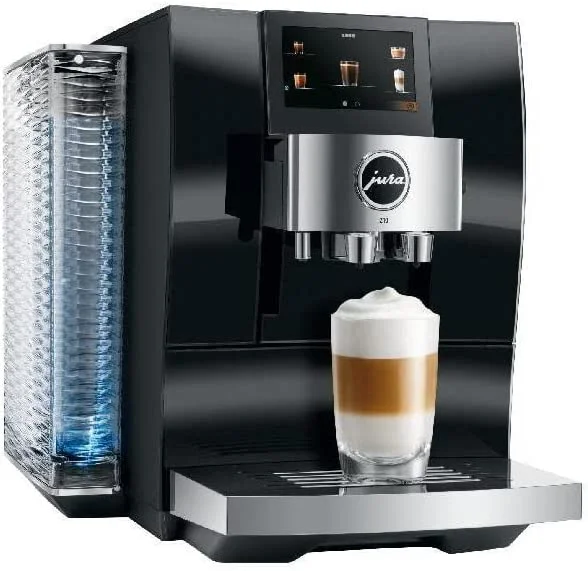
Jura Z10 - Flagship Super-Automatic
Jura Z10
P.R.G. grinder, cold brew, 32 specialties, J.O.E. WiFi app control. Check current pricing on Amazon.
Z10 Connection Problem Summary
| Problem | Most Likely Cause | Fix |
|---|---|---|
| Won’t connect at all | 5GHz band / phone on wrong band | Switch phone to 2.4GHz network |
| Bluetooth pairing fails | Stale pairing on phone or machine | Forget device on phone, reset on Z10 |
| Connected but drops | Router security mode | Switch to WPA2/WPA3 mixed |
| App shows offline | App out of date | Update J.O.E. app |
| Nothing works | Network credentials changed | Reset network on Z10, re-pair |
Thinking of Upgrading?
Still having issues? It might be time for a new machine.
If you have worked through every fix on this page and the Z10 still will not connect reliably, a hardware fault in the WiFi module is likely. The Z10 is still one of the best super-automatics available - check current pricing to see if a replacement or upgrade makes sense.
Check Jura Z10 Price on Amazon →